How can I add a new Customer?
You can add a new customer in one of the following ways:
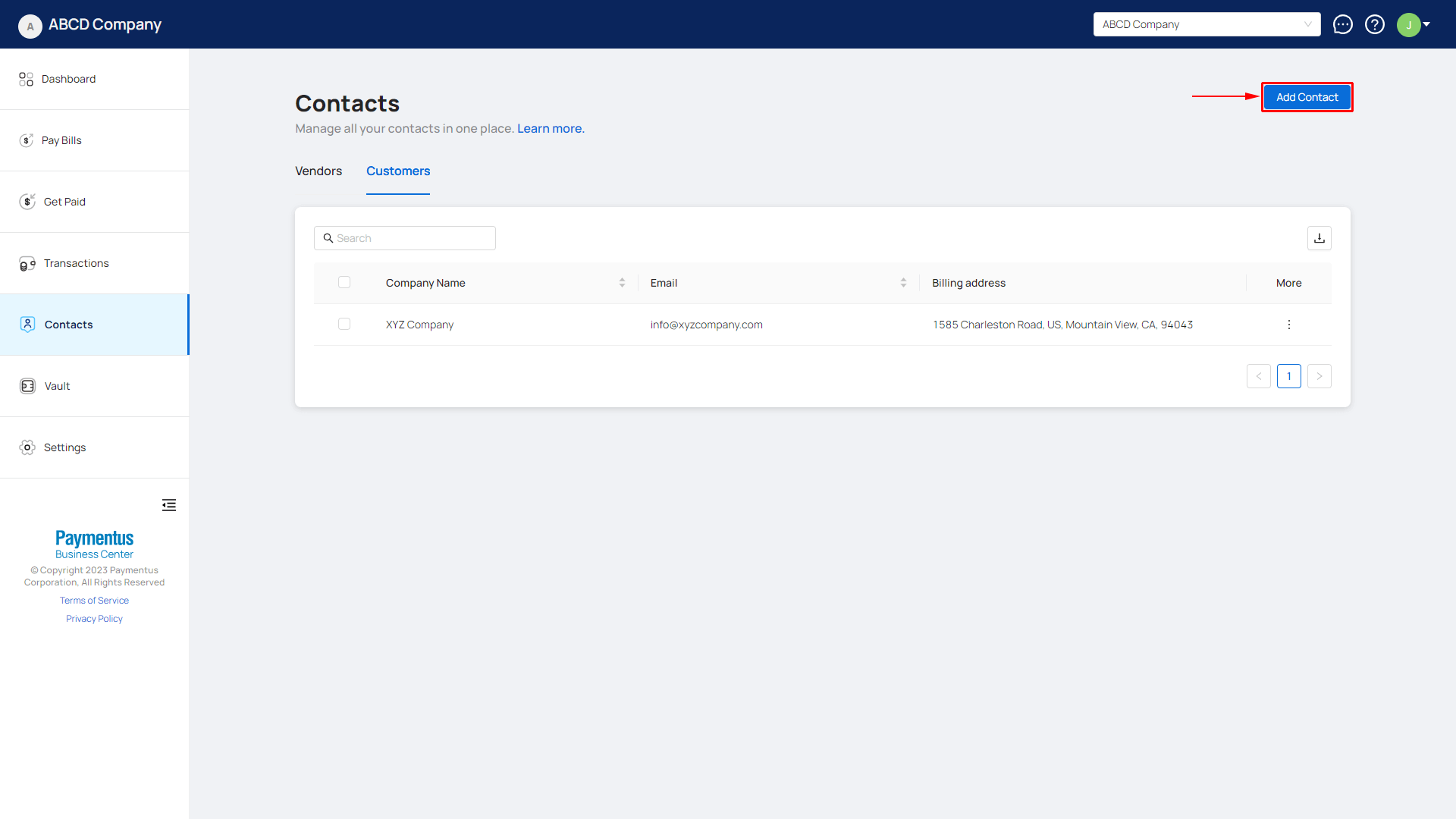
- Navigate to Contacts, click on Add Contact.
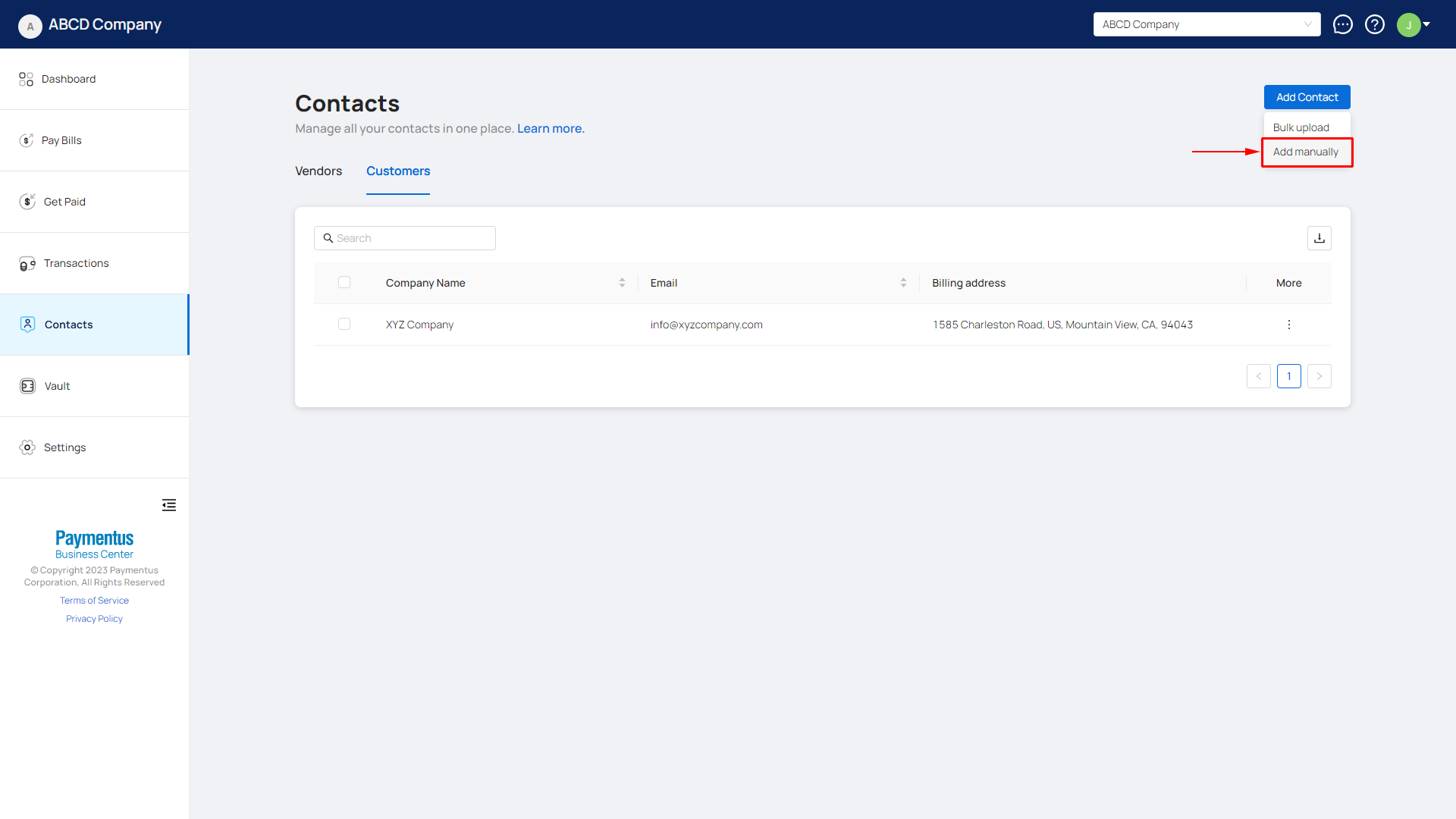
- Click on Add manually.
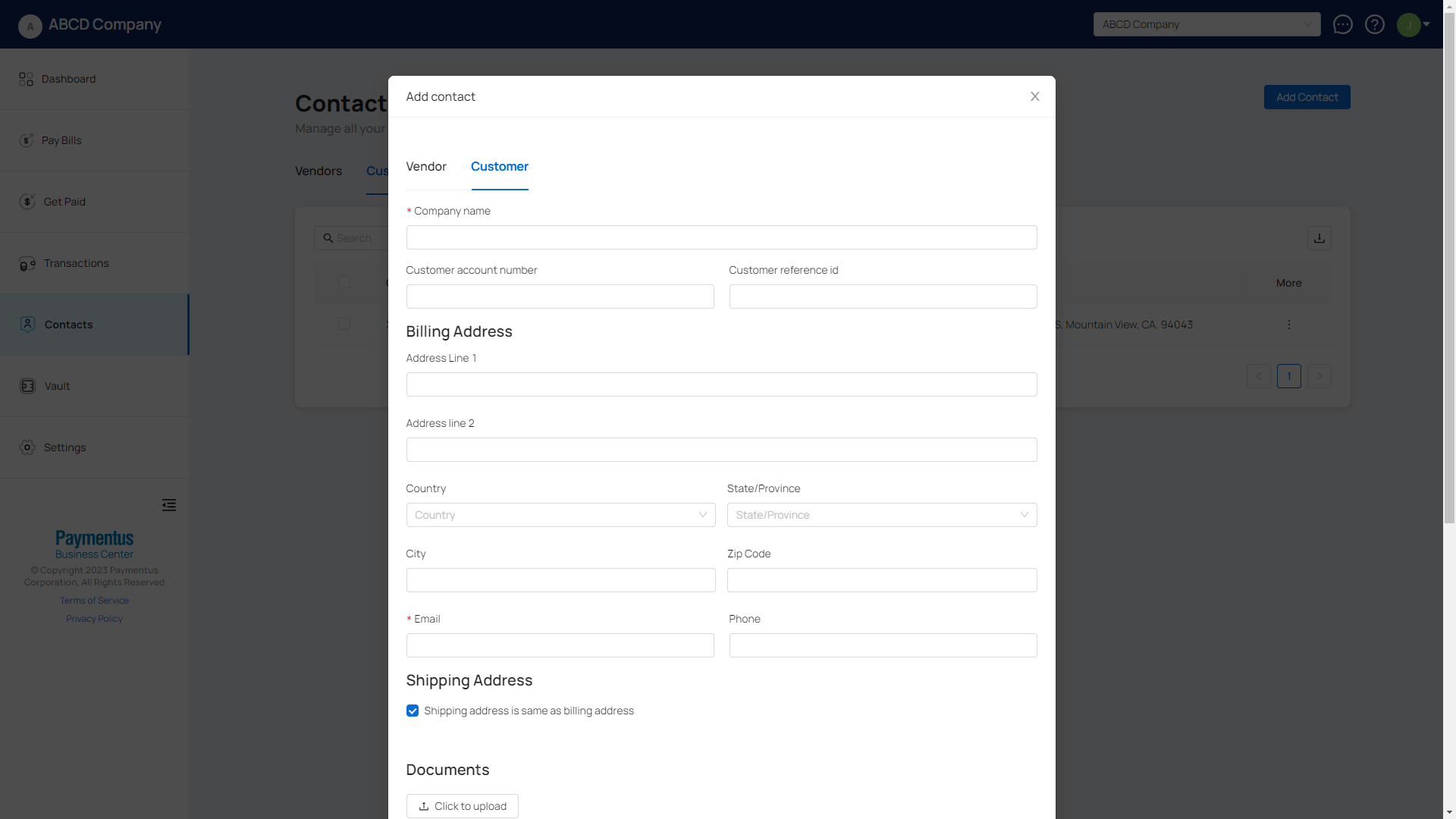
- Provide the necessary information under the Customer tab.
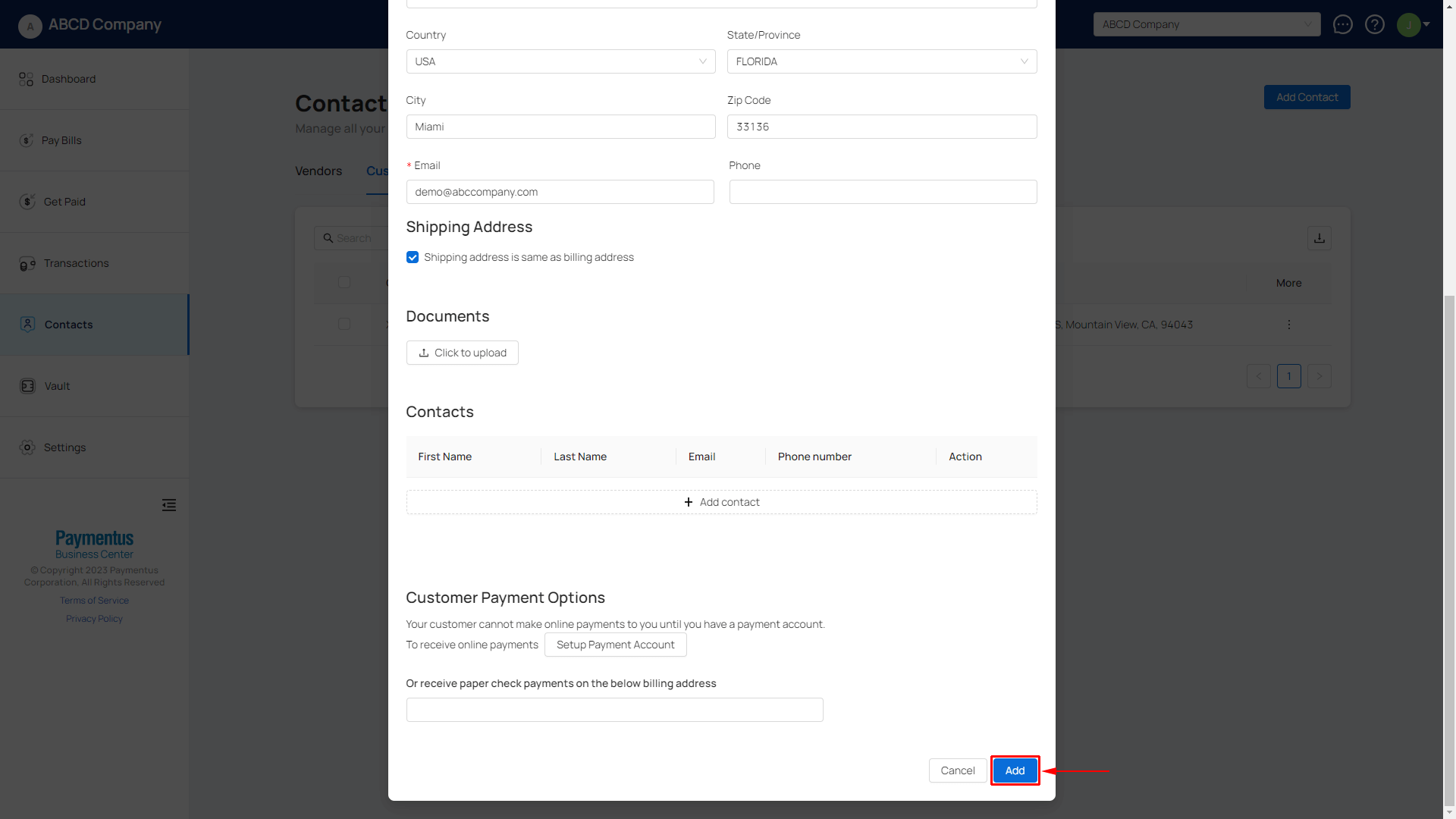
- Click on Add.
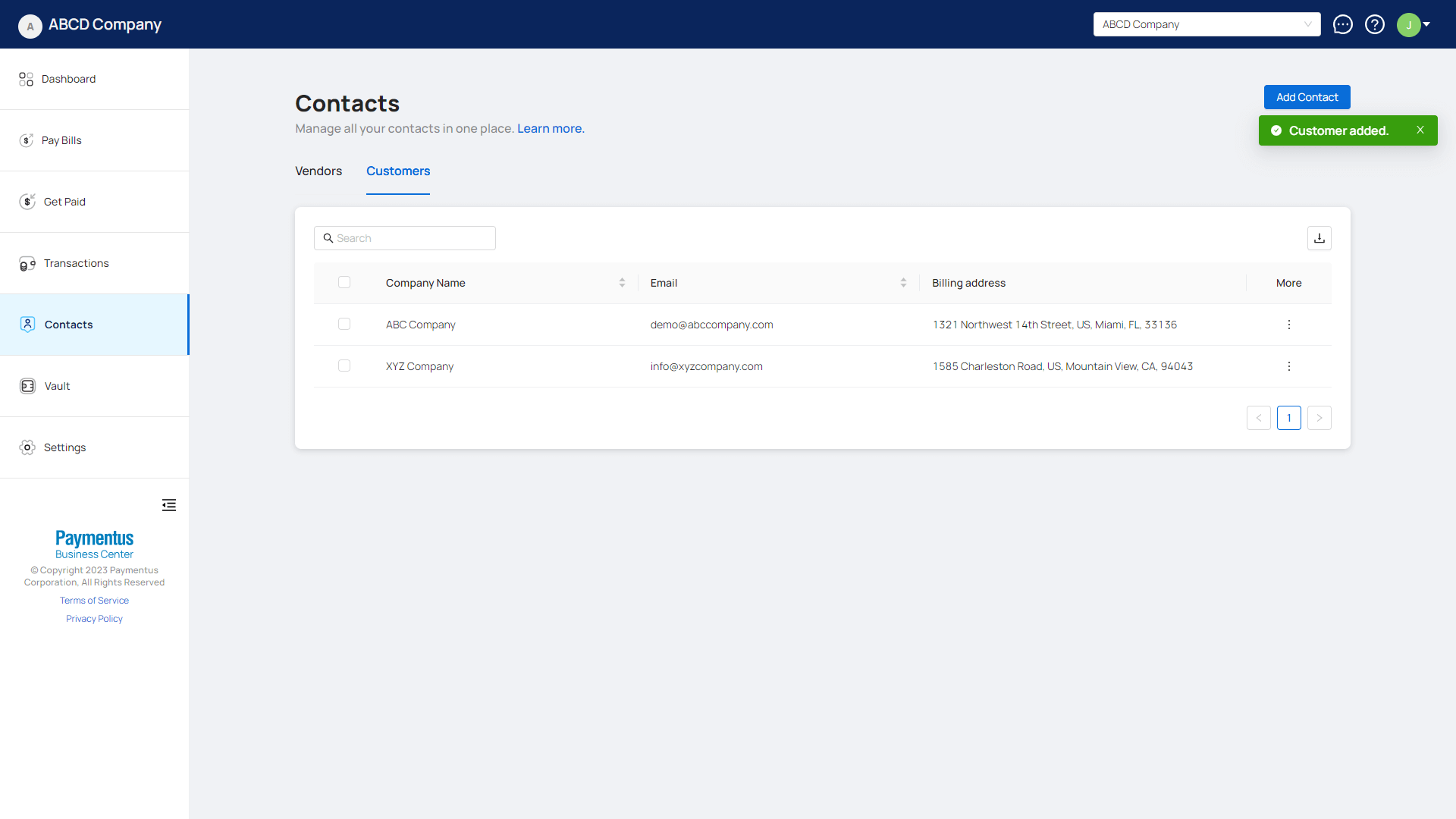
- If everything is done correctly, your customer will be added and you will see a success toast.
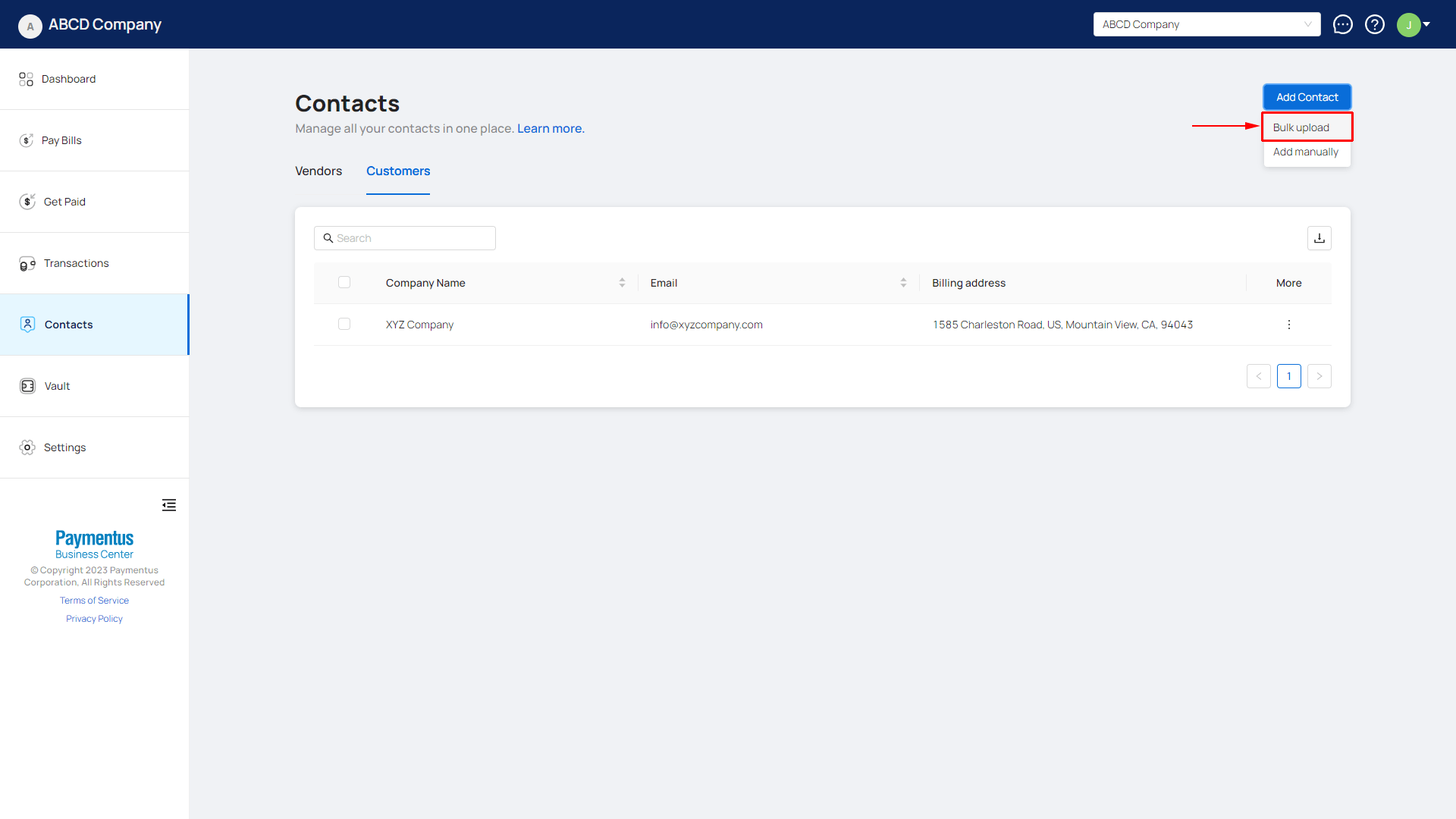
- Navigate to Contacts, click on Add Contact.
- Click on Bulk upload.
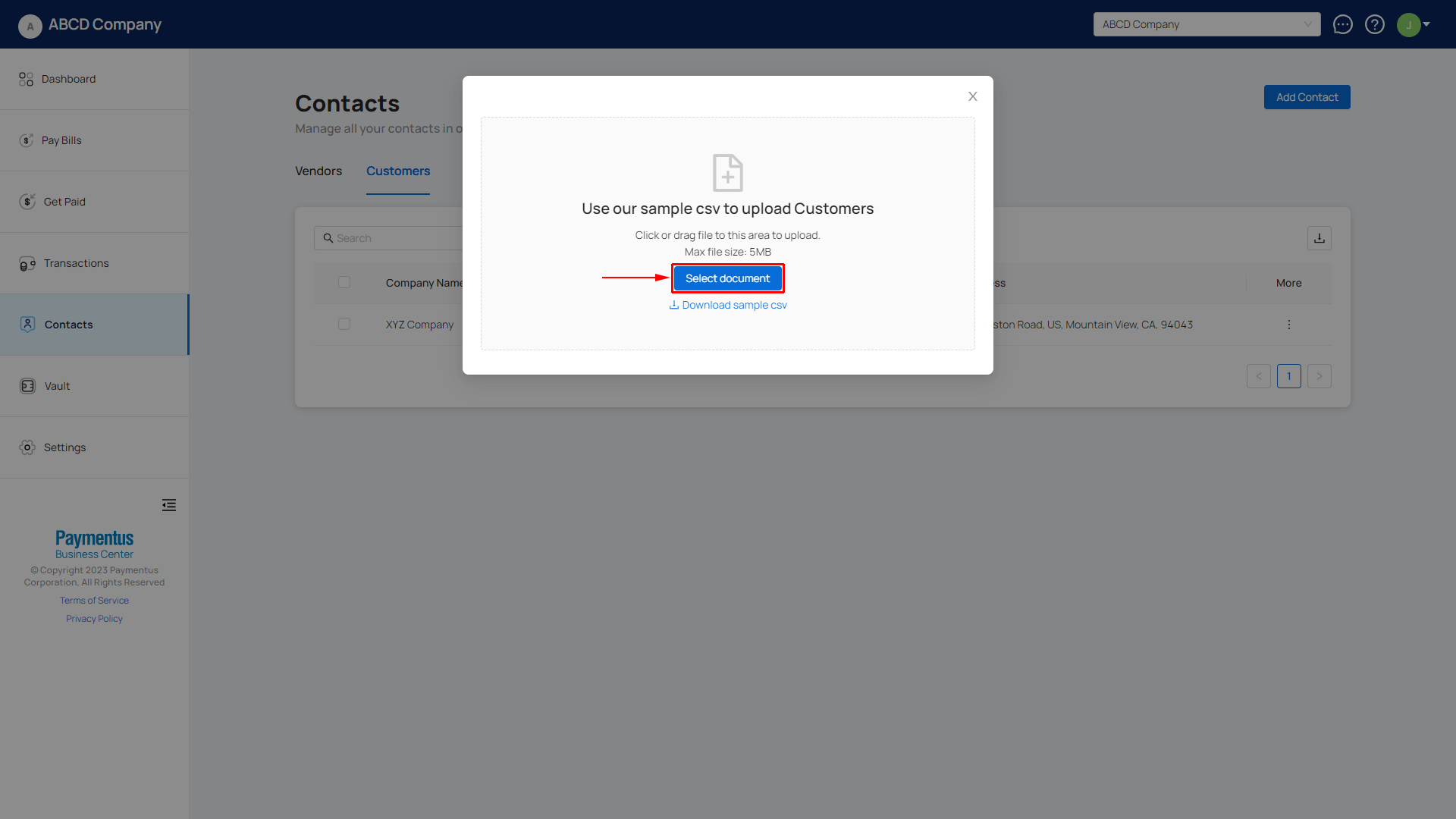
- Click on Select document and find the CSV file to upload. If you require our CSV template, click on Download sample csv.
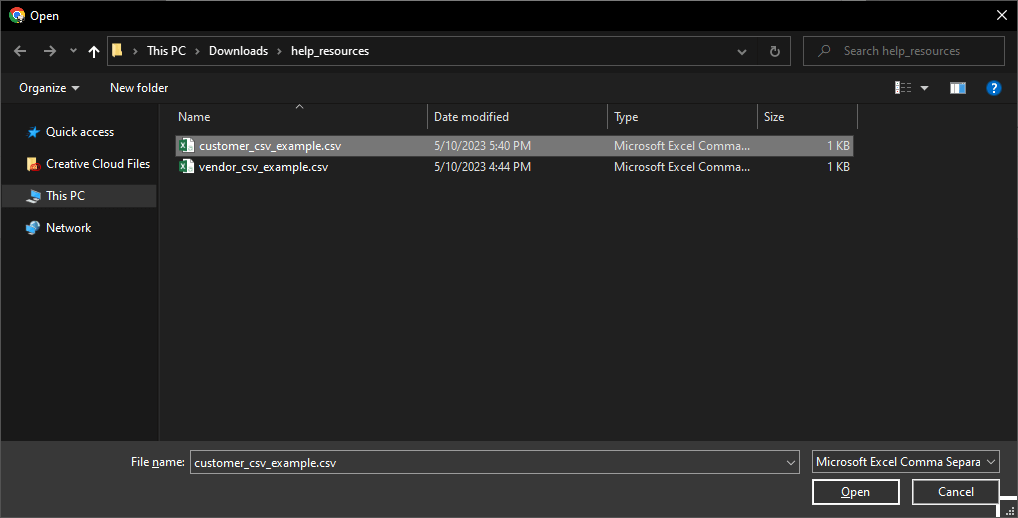
- Select the file to upload from the file dialog that appears.
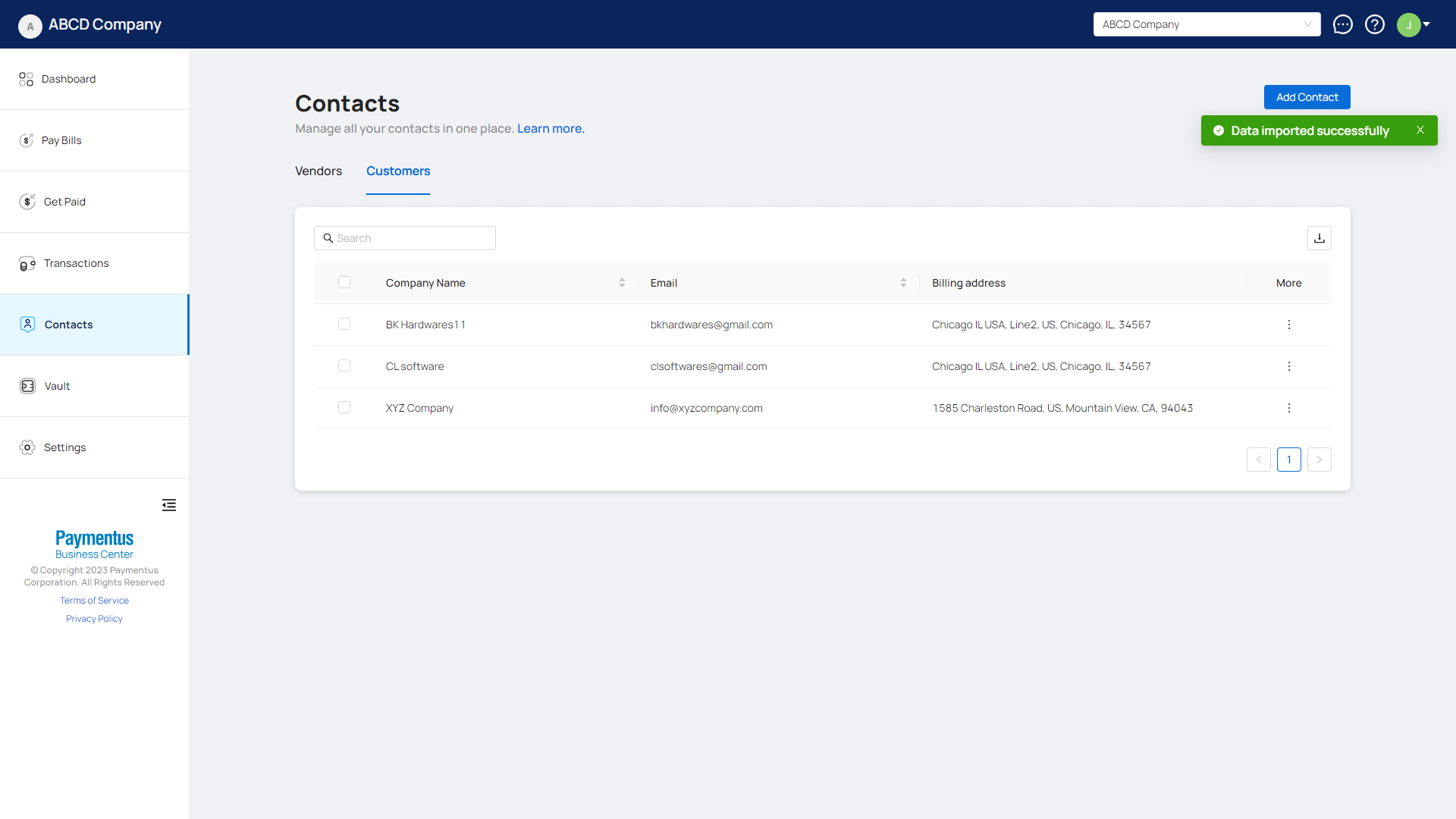
- If the file imports successfully, you'll get a success toast message and see your customer(s) populated in the table.
Sync with your accounting software; Business Center will automatically fetch all your customers from your accounting software.